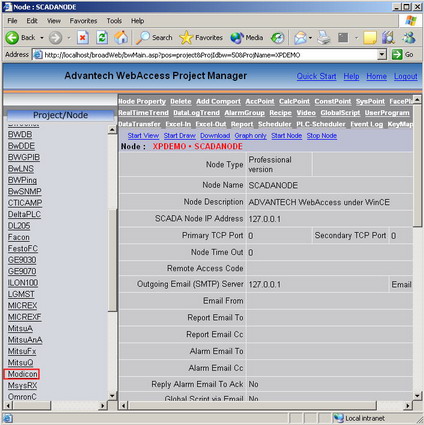
This example uses a Modicon Modbus Device to create a PID Block. This will create 4 parameters:
MEAS
SP
OUT
AM
1. Start Advantech WebAccess/SCADA Configuration.
2. Login with User Name and Password.
3. Select your Project Name.
4. The Project Manger opens.
5. Drag the slider bar on the left Frame down to reveal Device Type list.
6. Pick the Modicon Device Type (this is for a Modbus Driver).
7. The Parameters Set for the Device Type (driver) opens.
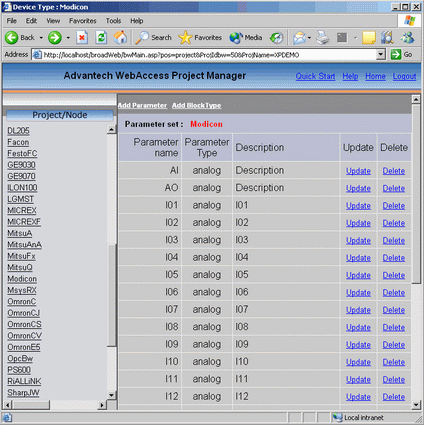
Figure 5-7Parameter Set - Modicon Modbus
8. Select Add Parameter.
9. The Create Parameter Properties Page opens.
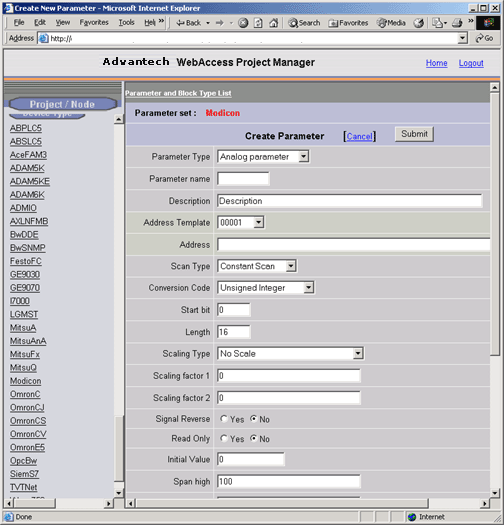
Figure 5-8Create Parameter Properties Page
9. Select Analog Parameter Type from the Pull Down List.
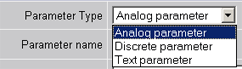
Figure 5-9Parameter Type Definition - Create Parameter
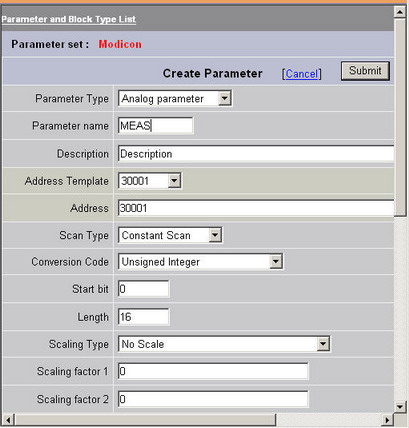
10. Enter Parameter name: MEAS.
11. Enter a Description: Measurement
12. Enter Address: 30001
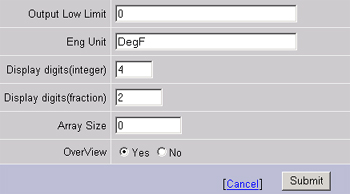
13. Enter Eng Unit: DegF
14. For OverView, select Yes
15. Refer to the Analog Parameter Properties to change the other parameters as needed.
16. Press Submit when you are finished entering Data.
17. Select Analog Parameter Type from the Pull Down List.
Figure 5-9Parameter Type Definition - Create Parameter
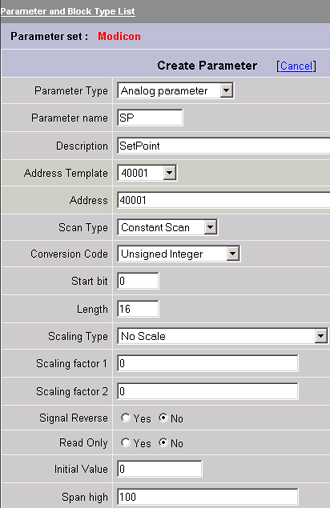
18. Enter Parameter name: SP.
19. Enter a Description: Setpoint
20. Enter Address: 40001
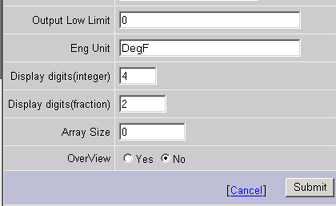
21. Enter Eng Unit: DegF
22. For OverView, select No
23. Refer to the Analog Parameter Properties to change the other parameters as needed.
24. Press Submit when you are finished entering Data.
25. Select Analog Parameter Type from the Pull Down List.
Figure 5-9 Parameter Type Definition - Create Parameter
26. Enter Parameter name: OUT
27. Enter a Description: Valve Output
28. Enter Address: 40002
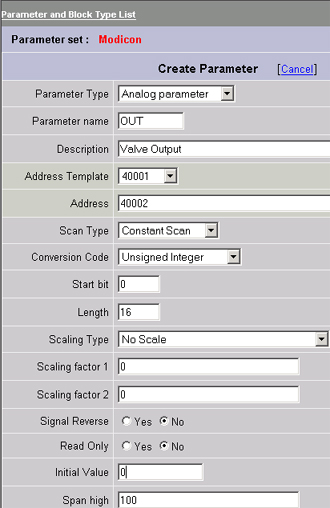
29. Enter Eng Unit: %OPEN
30. For OverView, select No
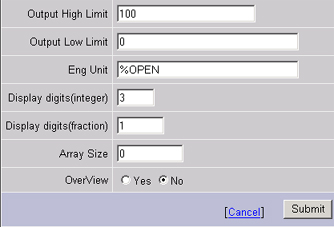
31. Refer to the Analog Parameter Properties to change the other parameters as needed.
32. Press Submit when you are finished entering Data.
33. Select Discrete Parameter Type from the Pull Down List.

Figure Discrete Parameter Type Definition - Create Parameter
34. Enter Parameter name: AM
35. Enter a Description: Auto/Manual
36. Enter Address: 00001
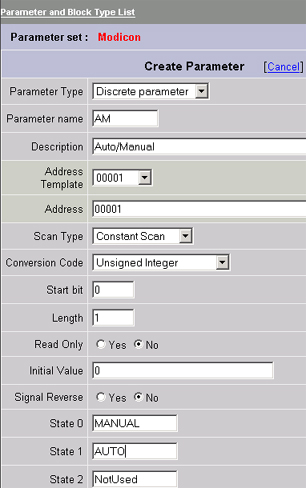
37. Enter State0: MANUAL
38. Enter State1: AUTO
39. For OverView, select No
40. Refer to the Discrete Parameter Properties to change the other parameters as needed.
41. Press Submit when you are finished entering Data.
42. Select the Parameter and Block Type List hyperlink when you are finished creating Parameters.